- Understands your SQL — syntax highlighting, autocomplete, formatting, error detection, and function signature help are all backed by a PostgreSQL parser, not regex.
- Guardrails — database access control and audit logs ensure every query is authorized and recorded.
- AI assistant — generate, explain, fix, and rewrite SQL with an AI assistant that understands your schema context.
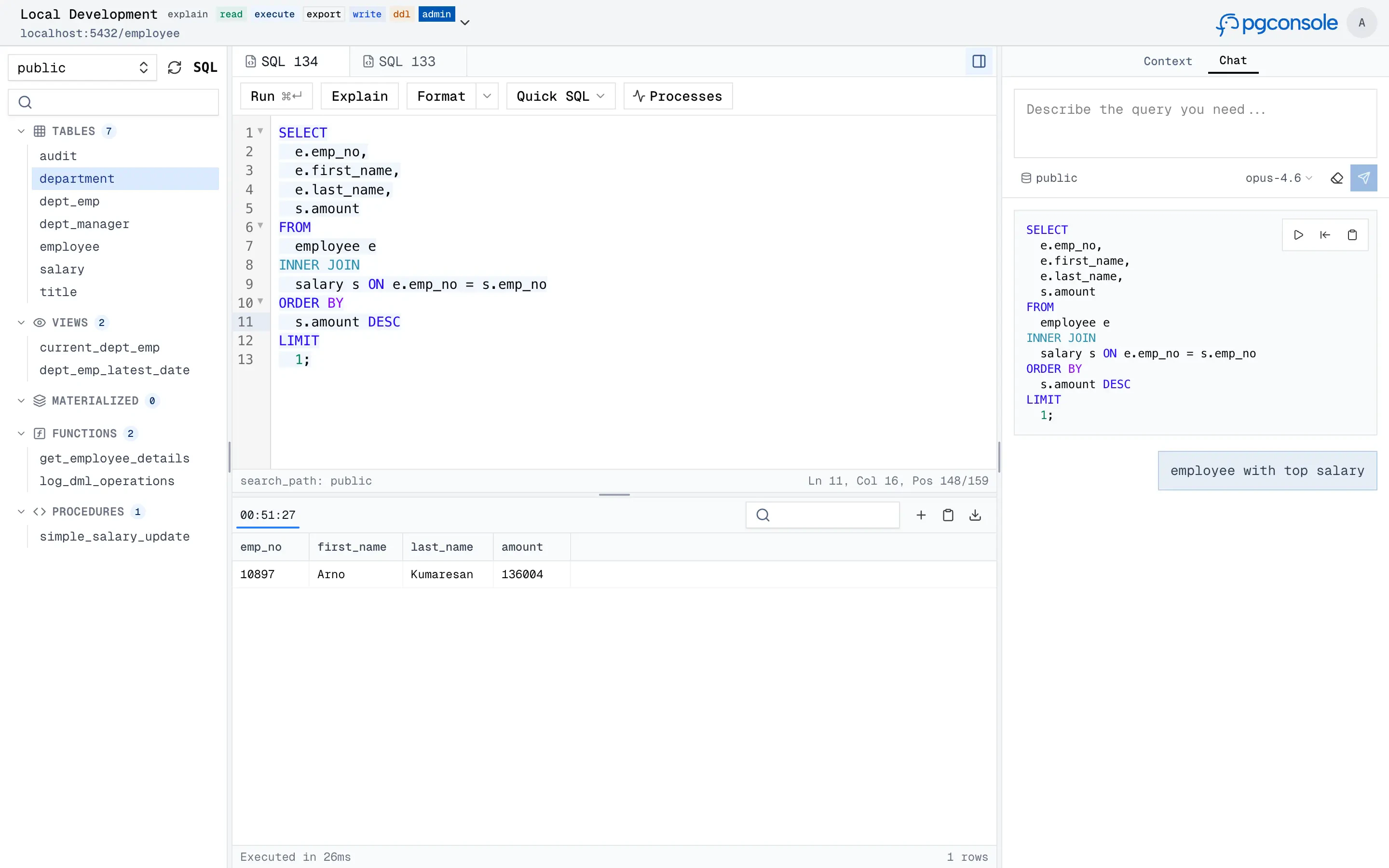
Editor
SQL Intelligence
The editor parses your SQL in real-time to provide:- Autocomplete — context-aware suggestions for tables, columns, joins, and CTEs (
Ctrl+Space)
- Formatting — pretty-print or collapse to one line

- Error detection — red underlines with hover tooltips; optionally Fix with AI
- Code folding — collapse
SELECT,WITH, and other blocks
Quick SQL Generation
When a table or view is selected in the schema browser, the Quick SQL menu generates SQL templates and inserts them into the editor:INSERT, UPDATE, DELETE, CREATE TABLE, and ALTER ADD COLUMN are only available for tables (not views).

Data Grid
Query results appear in the panel below the editor in a virtual-scrolling grid that handles large result sets efficiently.
Navigation
Pinned rows stick to the top of the grid for easy comparison across large result sets.
Inline Editing
Withwrite permission, you can modify data directly in the grid. All changes are staged locally — nothing is committed until you explicitly execute.

Staged changes are color-coded: green for new rows (INSERT), amber for modified rows (UPDATE), red with strikethrough for deleted rows (DELETE).
When changes are pending, a floating bar lets you Preview the generated SQL or Discard all changes. The preview modal shows syntax-highlighted INSERT/UPDATE/DELETE statements and optionally an AI-powered risk assessment before you Execute All.

Data Export
- Export results — downloads visible rows as CSV, TSV, JSON, or Markdown (requires
exportpermission) - Copy as Markdown — copies results as a markdown table to the clipboard
Schema Inspection
Schema tabs provide detailed inspection of database objects.
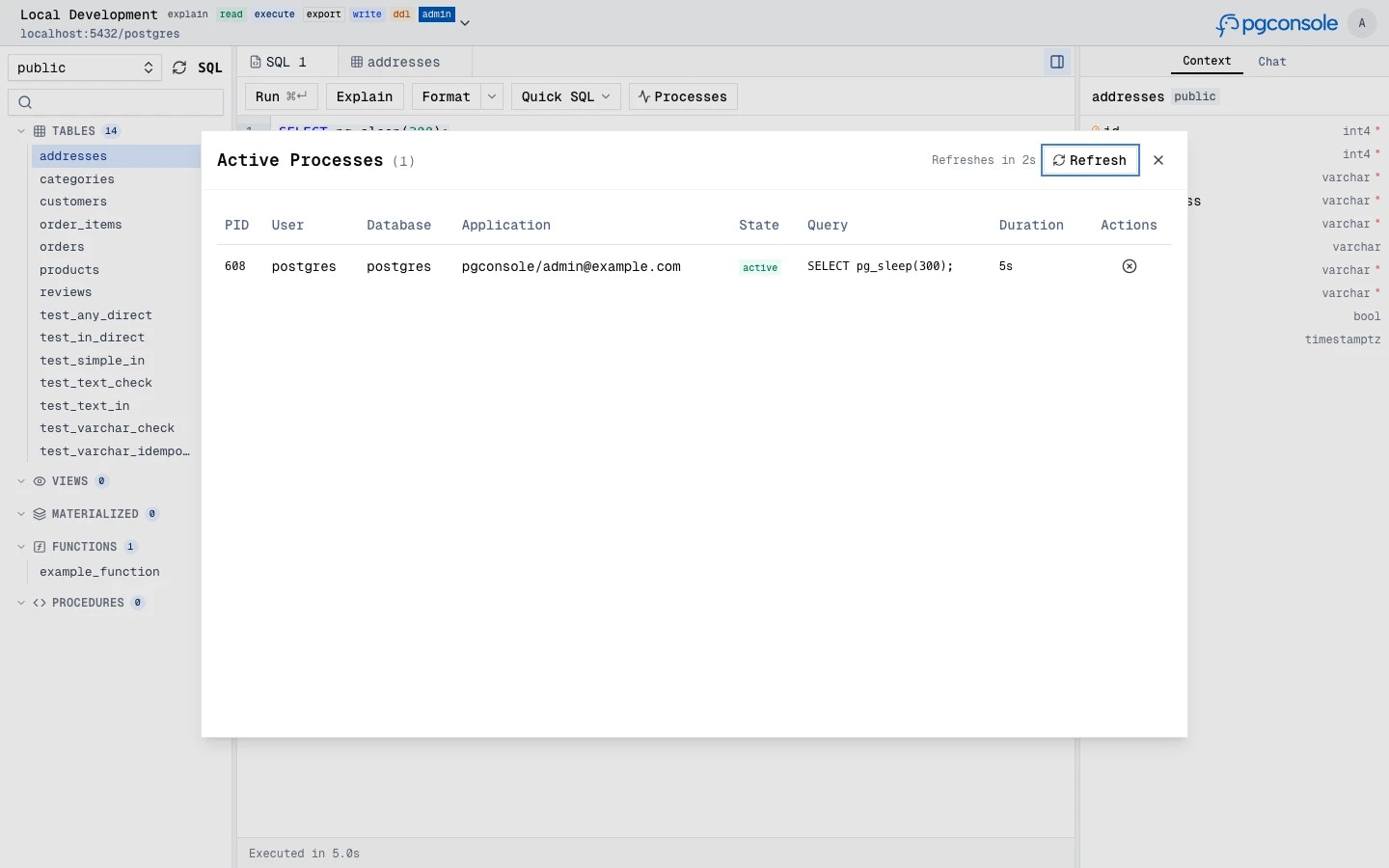
Active Sessions
The Processes button in the toolbar opens a modal showing active database connections. The list auto-refreshes periodically. Withadmin permission, a Terminate button appears on each row with a confirmation countdown.